8. GUI Programming
For all exercises this reference to tkinter is recommended for details that can not be found in the 0HV120 Reader: http://effbot.org/tkinterbook/tkinter-index.htm.
8.1. Basic GUI Widget exercises
1 simple GUI exercises
1a Use tkinter to create a GUI with a button next to a label. You may use a class for the window, but it is not necessary.
1b Extend the code of 1.a: everytime the button is pressed, something is shown in the label.
2 Canvas Shapes
The so-called Canvas widget is often used to create custom shapes and designs for GUIs. This exercise helps to show some of the possible shapes you can draw on a canvas.
An easy introduction in canvas drawing can be found here: https://tkdocs.com/tutorial/. First select Python as a language in the drop-down list on the right. There is a chapter on Canvas Drawing. You can use this resource to complete this exercise.
2.a. Build the GUI with a canvas on the top (200 x 100 pixels) and Buttons on the bottom.
2.b. Write a function that handles button click Rectangle and displays a rectangle of 180 pixels wide and 80 pixels high in the center of the canvas.
2.c. Write a function that handles button click Oval and displays a oval (ellipse) of 180 pixels wide and 80 pixels high in the center of the canvas. The oval should be filled with a color.
2.d. Write a function that handles button click Line and displays a straight line of 5 pixels thick from position (10, 90) to position (190, 10).
2.e. Write a function that handles button click String and displays the text “Hi I’m a string!” ate position (60, 40) with font = “Times 16 bold underline”.
2.f. Write a function that handles button click Clear and clears the canvas from all shapes.

Screen shots of the canvas shapes exercise; from left to right rectangle, oval, line and string.
8.2. Programming Exercises
3 Investment Calculator
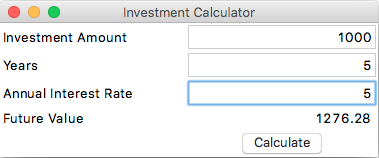
Write a GUI program that calculates the future value of an investment at a given interest rate for a specified number of years. The formula for the calculation is as follows:
futureValue = investmentAmount * (1 + interestRate / 100) ** years
You can obtain the future value by entering the investment amount, years, and annual interest rate. Use text fields for users to enter the investment amount, years, and interest rate. Display the future amount in a text field when the user clicks the Calculate button, as shown below.
4 Calculating an Average
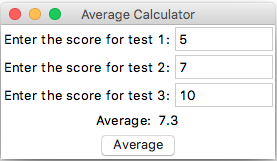
Write a GUI program that calculates the average mark of three exams. The layout of the program should be identical to the one in Figure 10. The window should be part of a class called AverageCalculator.
When the user fills in test scores and pressed the Average button, the average rounded off to 1 decimal should appear in the label at the bottom. The figure below shows a sample run.
5 Simple Integer Calculator
In this exercise we will build a realistic (simplified) calculator.
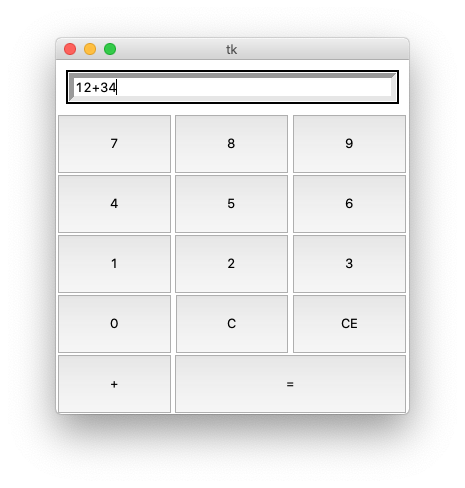
5.a. Create a GUI using a class CalculatorForm with one Entry and 14 buttons: 0-9, +, C, CE and =. An example is shown in the figure below. (hint: use the padx and pady parameters in .grid() to get the buttons aligned properly).
5.b. Add event handlers to the buttons “0” - “9” such that every time the correct digit is appended to the text shown in the entry. Your code should prevent the text in the entry from overflowing (by ignoring the button press).
5.c. Add an event handler to button “C” such that every time it is pressed, only the last character is deleted.
5.d. Add an event handler to button “CE” such that every time it is pressed, the entire display is cleared.
5.e. Add an event handler to button “+” such that every time it is pressed, a “+” is appended to the text in the display. In two cases the event should be ignored: (1) when the last character in the display is already a “+” and (2) when the display is empty.
5.f. Add an event handler to button “=” such that every time it is pressed, the expression in the display is evaluated and the answer is shown in the display. If it makes no sense to do a calculation the event should be ignored (e.g. when there is no “+” or when the “+” is at the end of the text). You may assume there is at most one “+” in the display.
5.g. (challenge) extend the functionality of f. in case there is more than one “+” in the calculation.
5.h. (additional challenge) extend the calculator with “*”, “-” and “/” buttons and extend handling of the “=” button to get a fully functioning basic calculator.
6 The count down
7 The Moving Ball
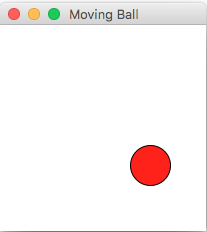
7.a. Write a GUI program that displays a canvas of 200 x 200 pixels with a single ball with a radius of 20 pixels in the center.
7.b. Write event handlers that let the ball move 10 pixels up, down, left and right when the user presses the up, dow, left and right arrow keys, respectively. Hint: bind a <Key> event to the canvas or window.
7.c. Modify the program in such a way that the ball will not leave the window, even when the user tries to do this with arrow keys. (Hint: you can check the current position and decide to ignore a key press). Movement of the ball within the window should be unrestricted.
Here is a screen shot in the middle of a sample run.
8 Bouncing Balls
Animation is one of the fun things to do in programming. In this exercise we will build a GUI step by step to show balls bouncing around on a screen.
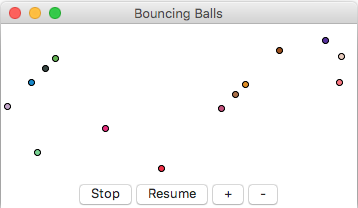
8.a. Write a GUI with the widgets shown in the figure with a canvas of 350 x 150. You can start with an empty canvas, the balls are introduced below.
8.b. Create a class Ball with private data fields x, y and r for the current center position and radius of a ball. The __init__ function should set these fields to default values of x=0, y=0 and r=3. You can choose the color yourself (or make it random for fun). The class also needs propper getters and setters, like getX() and setX().
8.c. Show a single Ball object at a random position inside the window, with properties x, y and r correctly drawn.
8.d. Every time there button + is pushed an extra ball should appear on a random position inside the window. Hint: create a new object of the Ball class, add it to a list (e.g. ball_list) and redisplay all the balls after clearing the canvas.
8.e. Every time there button - is pushed the first ball should disappear. Hint: remove a ball from list ball_list and redisplay all the balls after clearing the canvas.
8.f. (challenge) Let the balls move. Create a timer that is activated to fire every 100 miliseconds when resume is pressed. The function that handles the timer tick moves the balls 2 pixels to the right and 2 pixels down. Don’t worry about balls moving out of the window. The balls should stop when button Stop is pressed and resume moving when button Resume is pressed.
8.g. (real challenge) Let the balls bounce. When a ball reaches one of the walls, its direction should change so that it appears to be “bouncing”.
© Copyright 2022, dr. P. Lambooij
last updated: 02-09-2022